Digital signatures with Fabric
Welcome. You have probably arrived at this page from our Fabric Digital Signing page to see how you can verify the information that is found in the Technical Details section.
To start, you need to decide which tools you are going to use to verify this. There are a couple of 3rd party tools that adhere to the Cryptographic signing standard that will work.
We will list two of them and explain how to use them but before we start, please familiarise yourself with the Technical Details page content first.
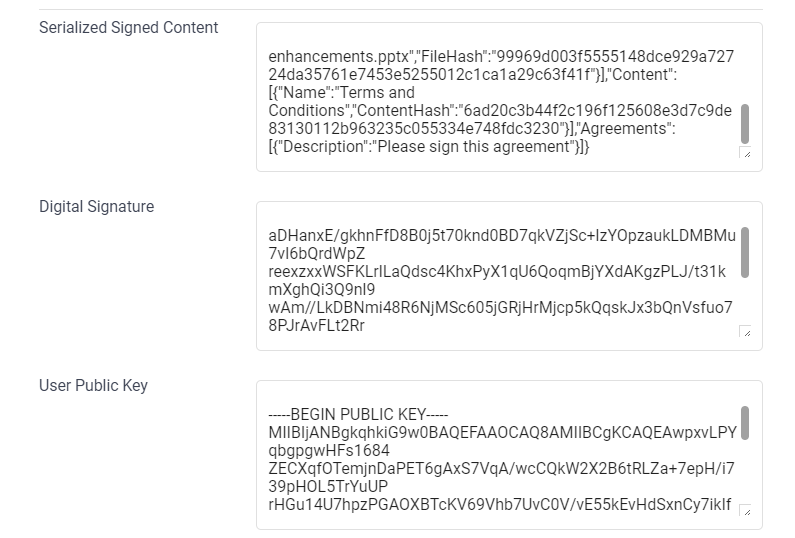
The Serialized Signed Content will be used as the “Original Content”. This is the content that we made a signature for.
The Digital Signature is the actual signature of the Serialized Signed Content but in an encoded form.
The User Public Key is the Public Key used to verify that the signature is valid and that the content is not tampered with.
Tools
Online Signature Verification service
This Online Signature Verification service allows convenience and simple access to verify that the content is correct.
On arriving on the page, it is advised to make the following adjustments before beginning:
-
Select the
Verify Signatureoption at the top of the page, just below the heading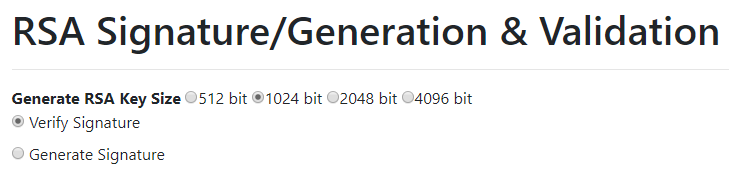
-
Clear out the
Private Keyfield.
-
Scrolling down, you will notice a list of
RSA Signature Algorithms. Choose theSHA256withRSAone.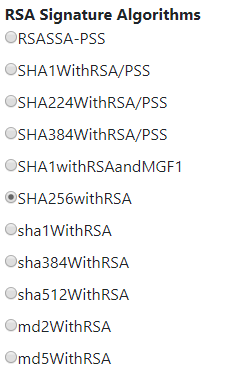
Please then copy the User Public Key into the Public Key text block, the Serialized Signed Content into the ClearText Message text block and the Digital Signature into the Provide Signature Value text block. Like so:

Once that is done, you will notice that a loading indicator appears, followed by the result of the information that is pasted into the site.

OpenSSL command-line
Copy the Serialized Signed Content, Digital Signature and the User Public Key into three distinct files respectively. For example: content.txt, contentsignature.txt and publickey.pem and place them in a location where you can easily access them with the openssl command-line tool.
OpenSSL unfortunately doesn’t work with the Base64 format version of the digital signature, so we will have to convert it to binary first.
You can easily perform this using this command:
openssl base64 -d -in .\contentsignature.txt -out .\content.sign
Now you can perform the verification command:
openssl dgst -sha256 -verify .\publickey.pem -signature .\content.sign content.txt
You should then see the outcome of the verification command:
